If you are away from your desk and would like to forward calls made to your office phone, you can forward all your calls to another phone number or to voicemail via the Cisco Self-Care portal.
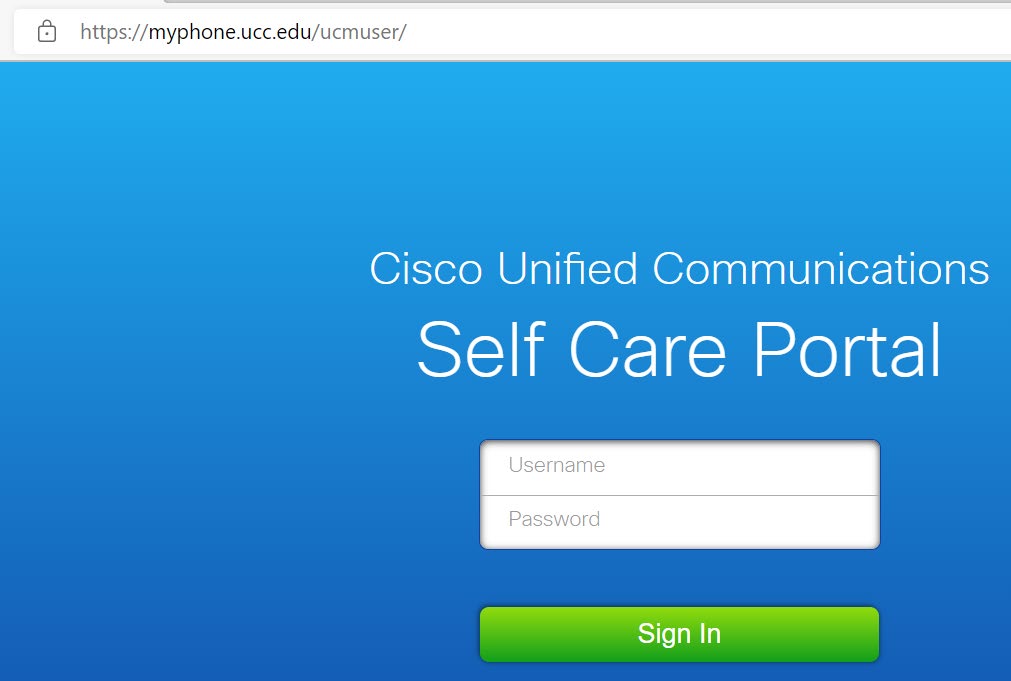
Note: To access the Self Care Portal you must be connected to the UCNJ network. If you are off-campus, you must be connected to VPN.
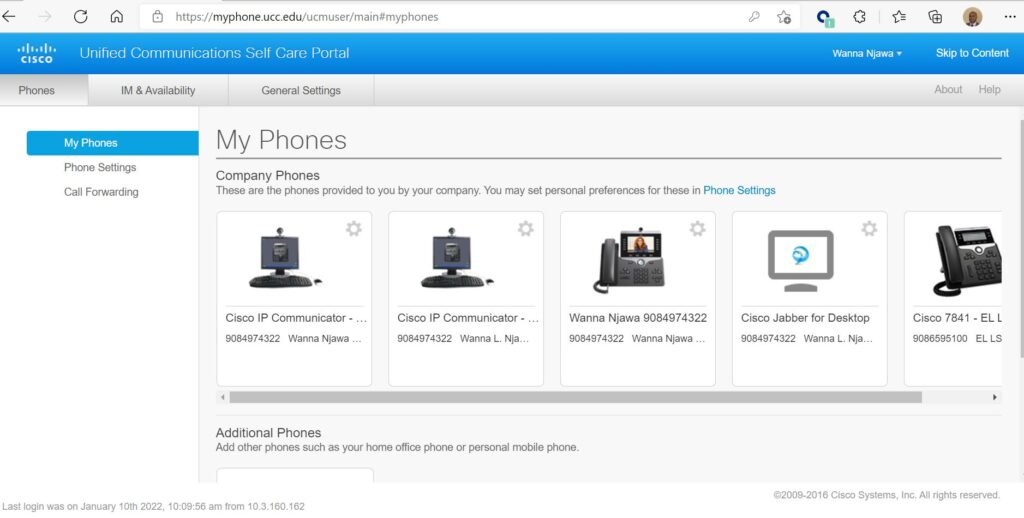
After logging in, you should see a page similar to the one below.
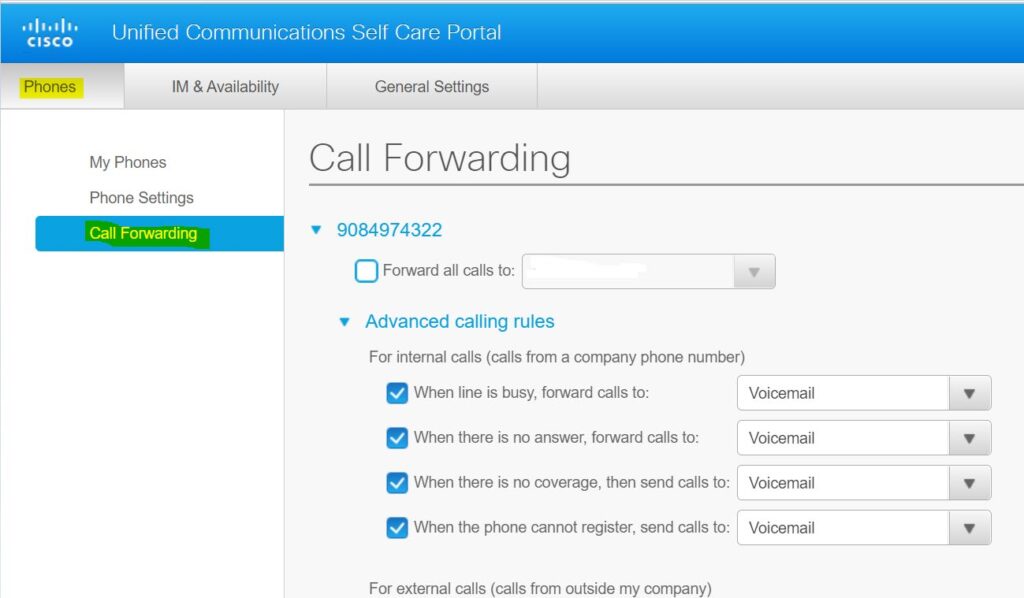
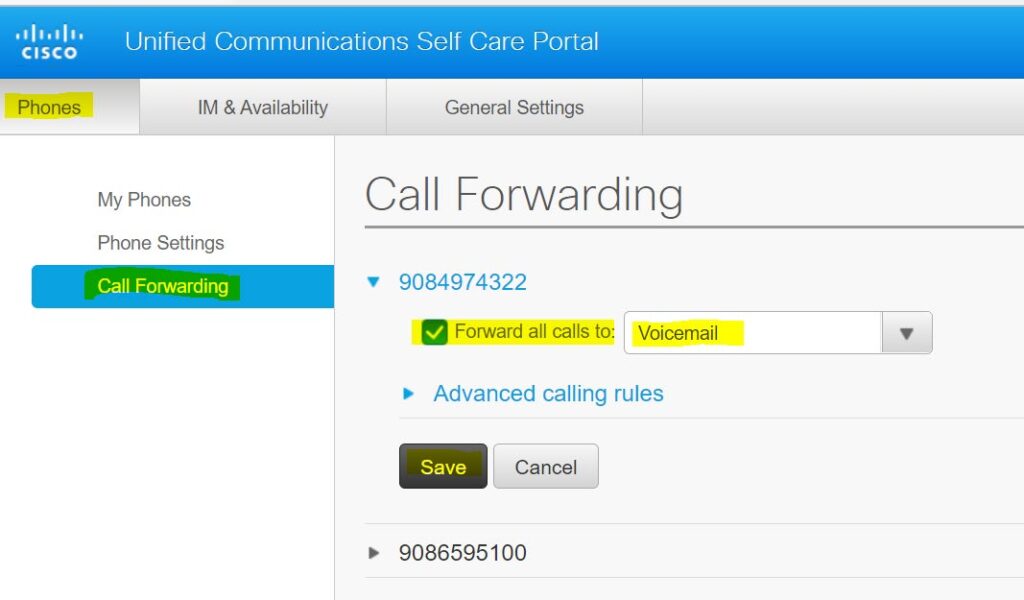
From Unified Communications Self Care Portal, choose Phones and click Call Forwarding.
Click the phone number on which you want to set up call forwarding.
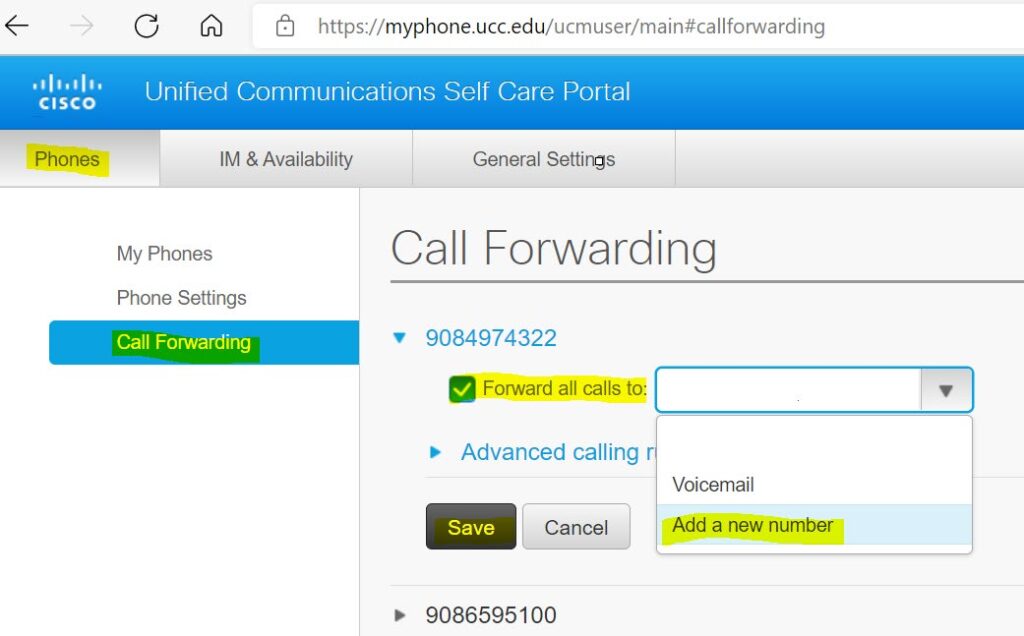
To forward calls to another phone number, check the Forward all calls to: check box, choose Add a New Number from the drop-down list and enter the phone number in the field and Save.
Note that “91” must precede the number in order to forward calls to an outside line (i.e., 915555555555).
To forward calls to a voicemail, check the Forward all calls to: check box, choose Voicemail from the drop-down list and Save.
To forward calls to an existing number already in the Self-Service Portal, check the Forward all calls to: check box, choose the Existing Number from the drop-down list and Save.
To remove call forwarding, uncheck the Forward all calls to: check box and Save.