You can forward your Cisco office phone to any phone or directly to your voicemail through the WebEx app following the below steps.
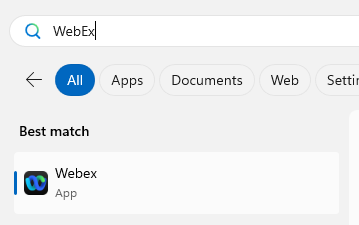
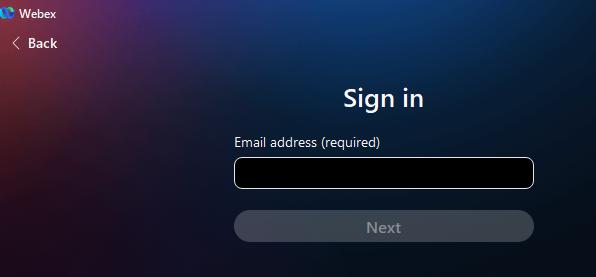
Ensure you are logged into WebEx. On your computer, open Webex and then login using your college email address.
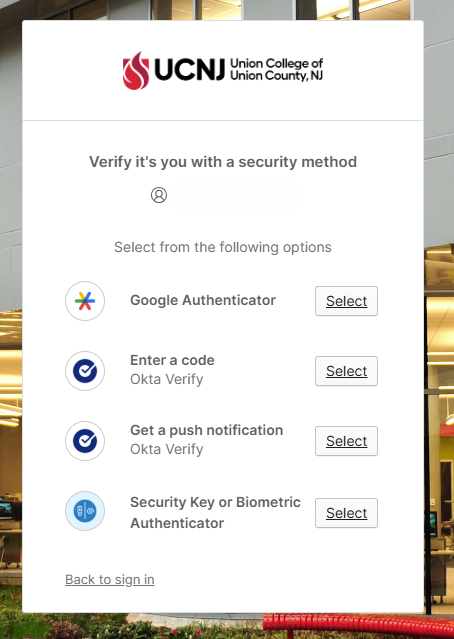
Authenticate via the Okta app using your preferred method.
Once in WebEx, click the cog icon in the bottom left corner to get to the Settings menu.
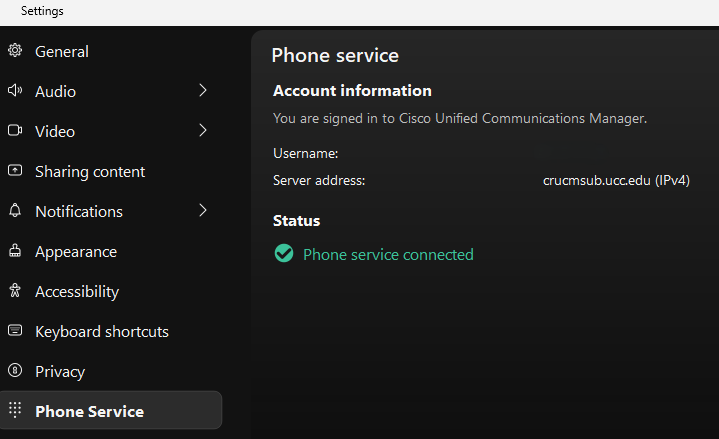
Ensure that you are signed into “Phone Service” under WebEx settings. If not, login to Phone Service using your college credentials.
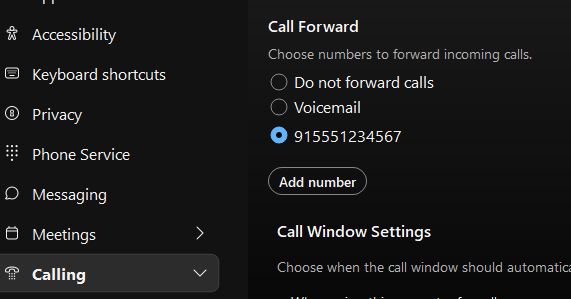
To configure call forwarding, add the phone number you would like to forward calls to under WebEx Settings > Calling > Call Forward > Add Number.
The format of the number needs to be 915551234567 with no dashes. The “91” is to access an outside line and “5551234567” represents the 10 digit phone number.
Once entered, select Add.
When back at the Calling screen, select the number you just entered and select Save.
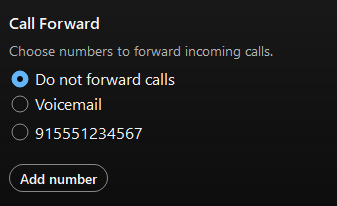
To remove call forwarding, you will select Do Not Forward Calls and click Save.