Preparing your Office Computer
The first step is preparing your office computer for a Remote Desktop Connection (RDC). You must make your office computer your Primary Computer.
- On your office computer, navigate to the search bar and start typing Manage Primary Computer and click on the Manage Primary Computer app.
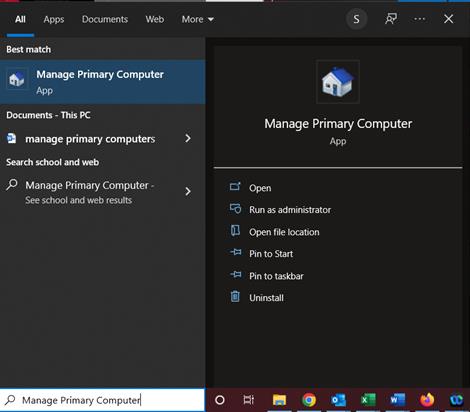
- Click on Make Primary to set your computer as your primary computer.
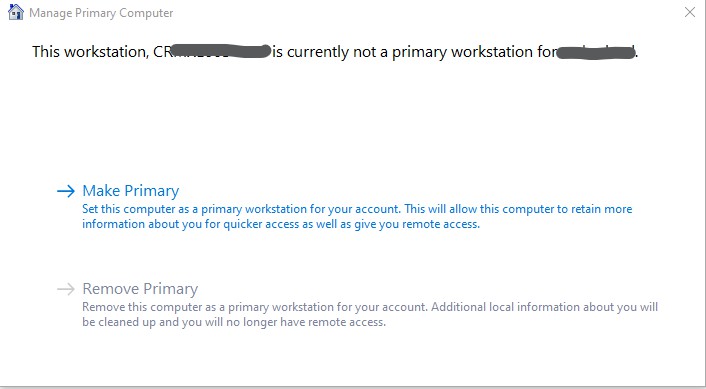
- When complete, you will see that your computer is set as Primary, the Make Primary option is now grayed out and the Remove Primary is now available. Be sure to make note of the full computer name as you will need that information to remote into that computer with Remote Desktop.
Installing the VPN Client
- On your off‐campus computer, launch a web browser and navigate to https://sslvpn.ucc.edu.
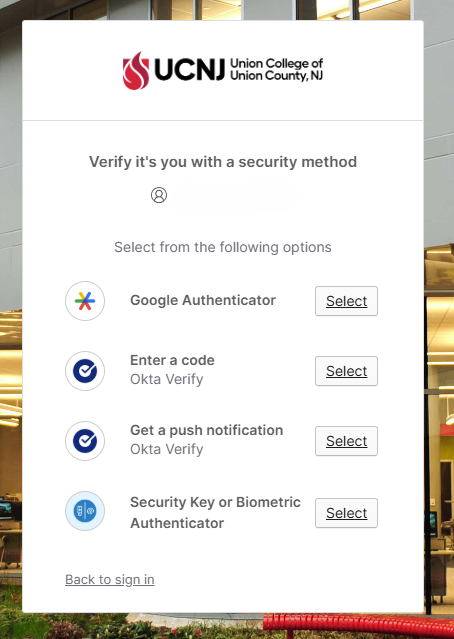
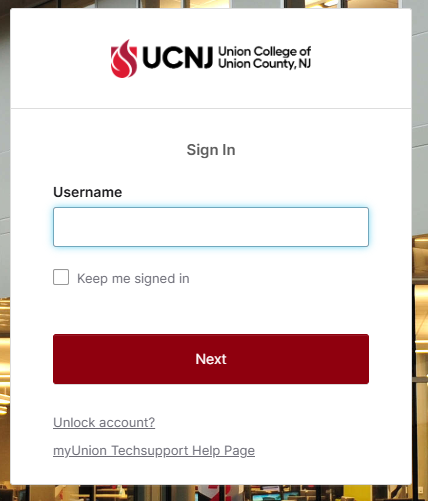
After you click Connect, you will see a popup window prompting you to login with Okta. The username is your college email address, and the password is your college password.
- Once logged in, you will need to download the VPN agent. Click the link that corresponds to the Windows operating system (32-bit or 64-bit) that is running on your computer to begin the download.
When prompted, Run the software. When prompted again, Run the GlobalProtect Setup wizard.
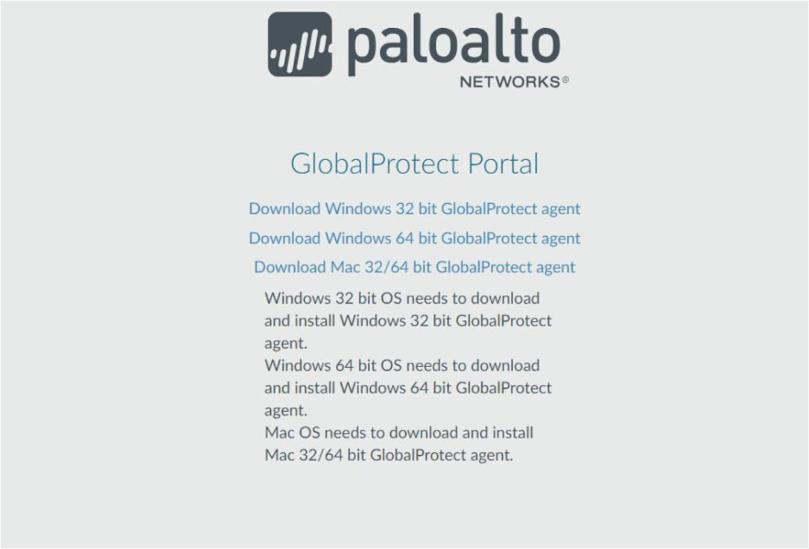
- In the GlobalProtect Setup Wizard, click Next.
- Click Next to accept the default installation folder (C:\Program Files\Palo Alto Networks\GlobalProtect).
- After the installation finishes, Close the wizard. The GlobalProtect agent will start automatically.
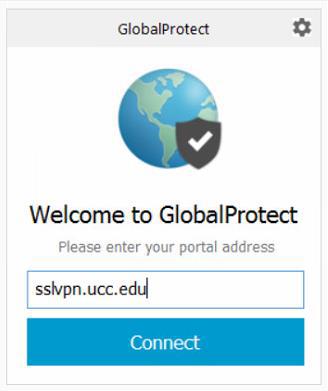
- The Global Protect window should now appear (shown below).
- Enter sslvpn.ucc.edu for the Portal Address and then click on Connect.
- After you click Connect, you will see a popup window prompting you to Sign In with Okta. Enter your college username and password. (Note: This is the same login information you use to log onto your office computer).
- You should now be connected to the UCNJ Network via VPN.
Remote Desktop to your Office Computer from Off-Campus
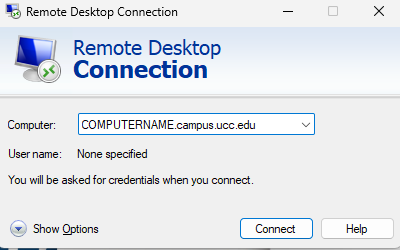
- From a Windows based computer, click the ‘Start Tile’ on the bottom left side of the screen. In the Search bar on the top of that window, type in Remote Desktop Connection. In the Best Match list select the Remote Desktop Connection app.
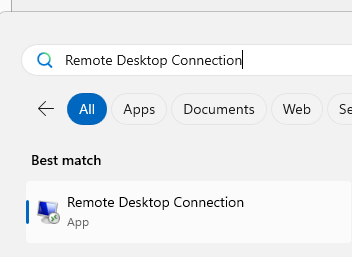
- When the ‘Remote Desktop Connection’ window opens, you will enter your full office computer name in the format COMPUTERNAME.campus.ucc.edu and then click Connect. (Note: this information was collected in an earlier step).
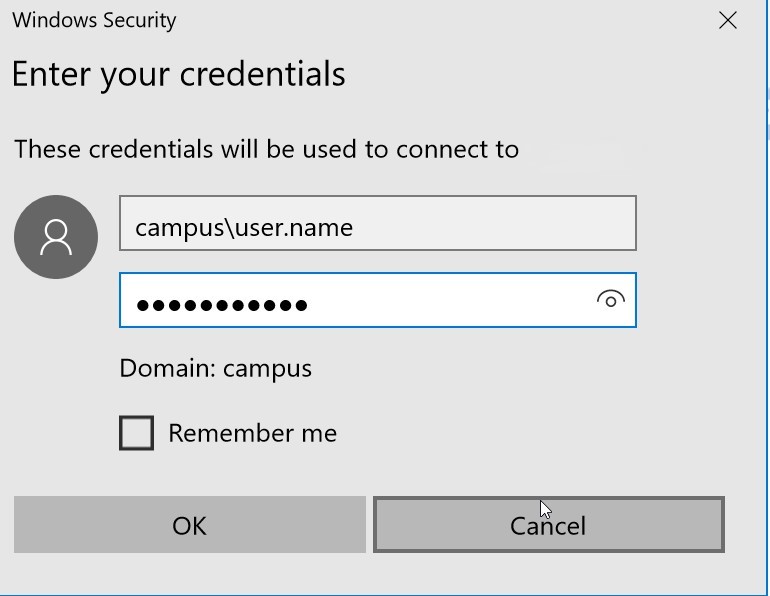
- After clicking Connect, a logon window will appear. Enter your UCNJ login credentials:
- The username will need to be entered in the following format: CAMPUS\username (where username is the same username you would use to logon to your office computer).
- Then enter your college password and click ‘Continue’.