The options (categories) available to you will differ, especially if you are a former or current student.
Select Course Catalog
Search for Courses and Course Sections Page
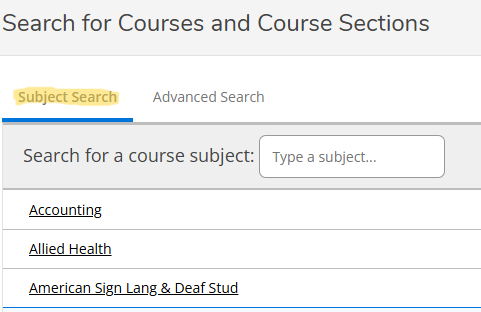
The current default tab is Subject Search. The Advanced Search tab guidance will follow the Subject Search guidance.
Mouse-click on the Subject you want to search.
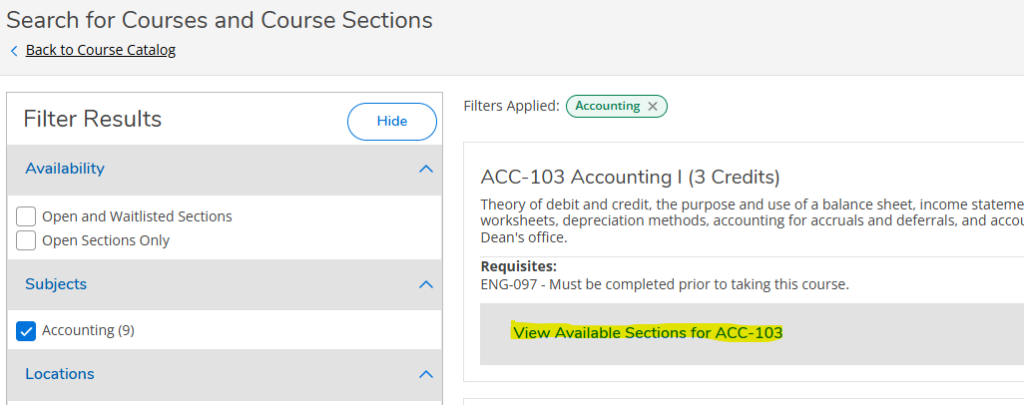
Filter Results
A list of courses for the subject selected is displayed on the right. From here you can select additional filters from the options on the left. Each time you add an additional filter, the results on the right reflect those selections. NOTE: Only terms that are open for registration will be available in Subject Search.
You can “View Available Sections” by clicking on that area of the course result.
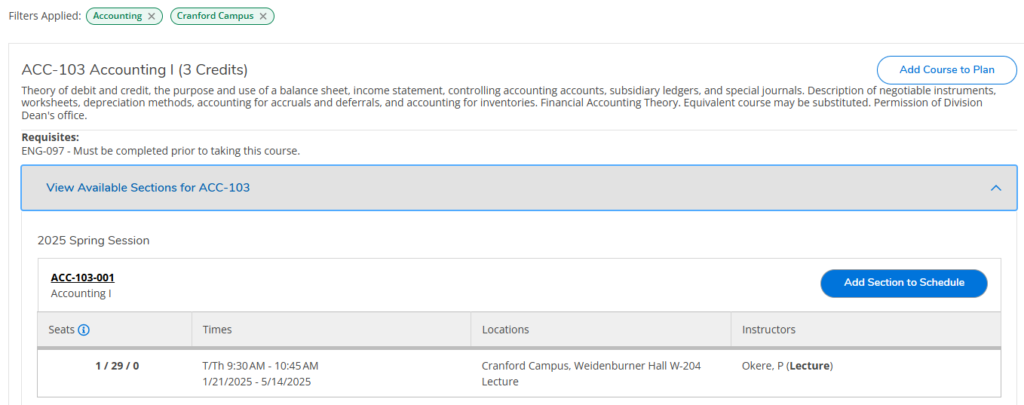
“View Available Sections” Results
The filters selected appear in the green buttons above the results. For students and advisors, there are options to “Add Course to Plan” and “Add Section to Schedule”.
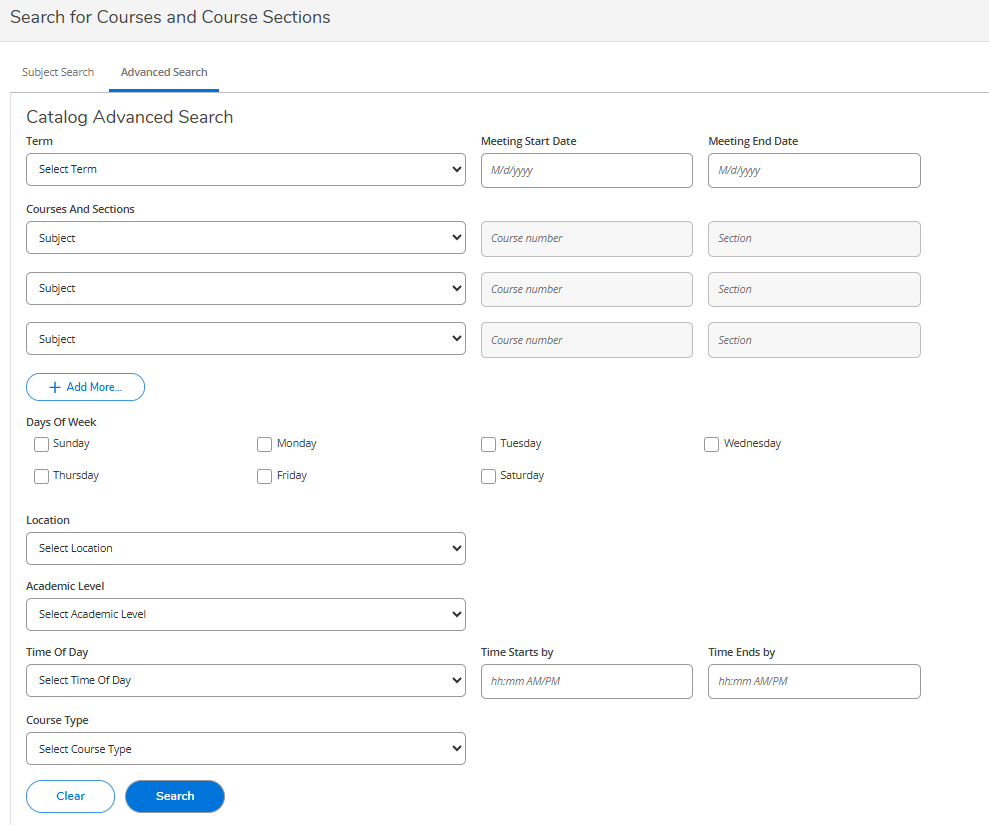
Advanced Search
The Advanced Search is very much like the Search for Sections page in Web Services. Selection criteria is self-explanatory. After entering the search criteria, click the blue Search button at the bottom of the page. NOTE: The available terms for selection are set by the Registrar’s office.
The Advanced Search results are the same as for Subject Search.