24/7 Canvas Support Hotline: 833-430-3504
Online Learning Help: ucconline@ucc.edu or (908) 497-4364
At the end of this lesson you will be able to;
- Create a Webex meeting in Canvas for your students to access
- Start a meeting
- Share your content/screen/website/videos
- Record your content/play it back for students
- Take attendance
- Creating a meeting in Canvas.
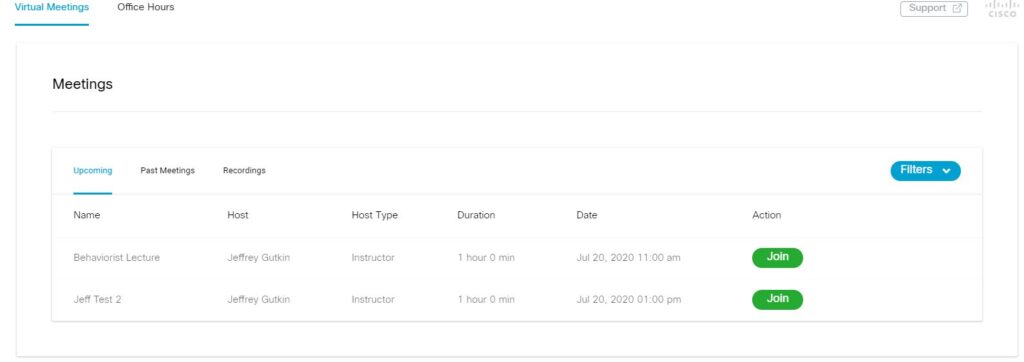
- Click on Webex tab. If it is not enabled, go to Canvas “settings” and “navigation” and enable it.
- Select “new meeting” On the next screen you will add the meeting information
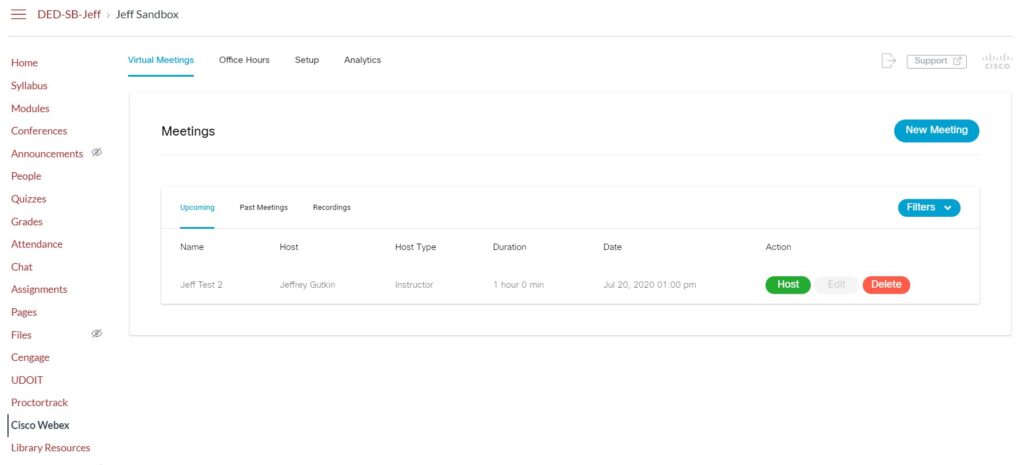
- Name the meeting.
- If you are doing a meeting each week, you can name it by week or by topic. Create a new meeting each week so you can record it and play it back.
- Select the date and time and duration of the meeting
- Once you create this meeting, all students in this class can click on the Cisco Webex link and access the meeting. Once you click create meeting, you can then press “Host” to start it
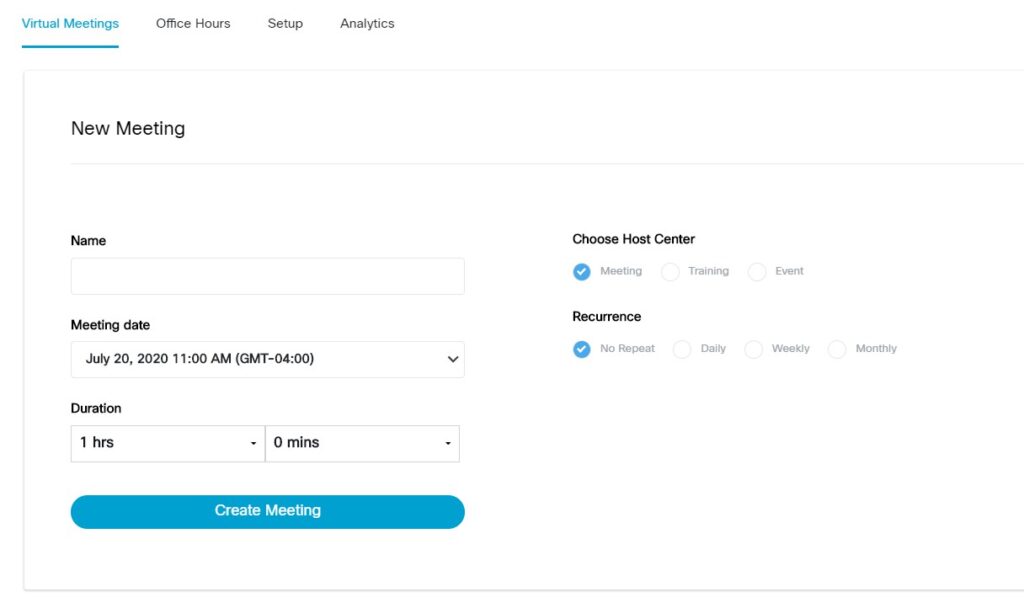
- Click Host to Join as Presenter. Select edit to change the time and date of the meeting.
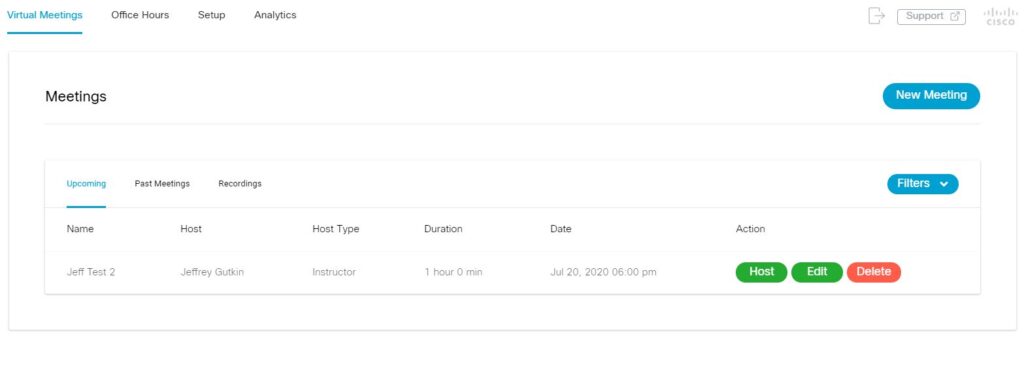
- Students will click on see each meeting and will click “Join”. They can also access the recordings on this screen.
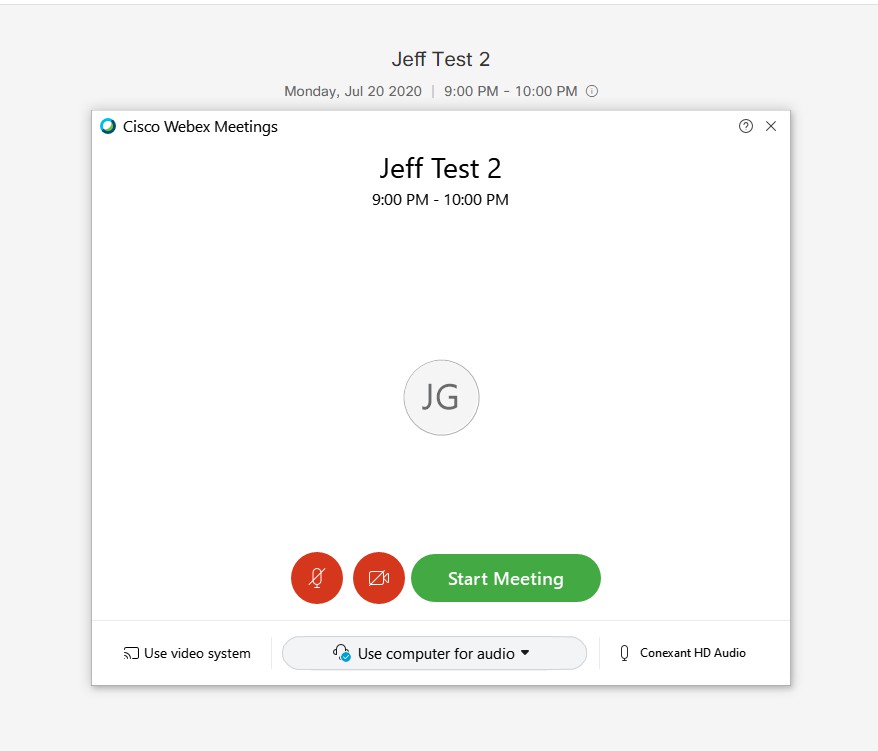
- Once you press “host” this window will open. There are several options; Mute Microphone, Turn on and off camera and start meeting.
- If you have a working webcam and microphone built in you can use computer for audio.
- If not select that pulldown for further options.
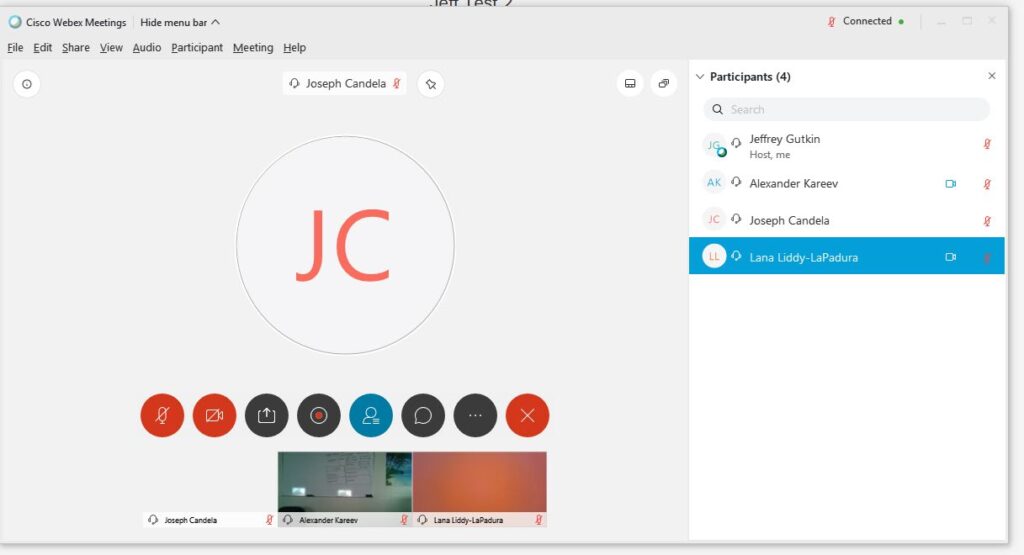
- Change the arrangement of the screen items.
- Many options are found in this menu bar.
- You can mute or enable participants here.
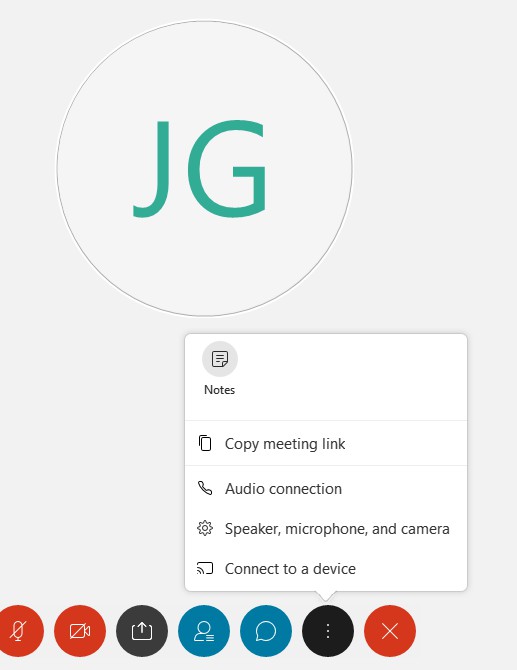
- This toolbar of circles will allow you to perform most of the functions needed to share content to your class.
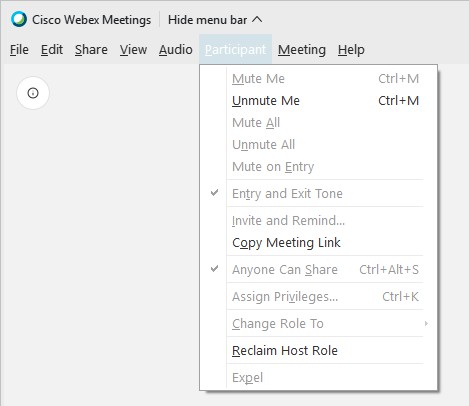
- The menu in the upper left hand has some important controls. Here you can unclick “anyone can share” to lock the screen. Other tools such as “mute on entry” are very important as well.
- Selecting the three dots allows you to copy the meeting link if you need to share it with someone outside of your class.
- If you are using two screens the second would appear here.
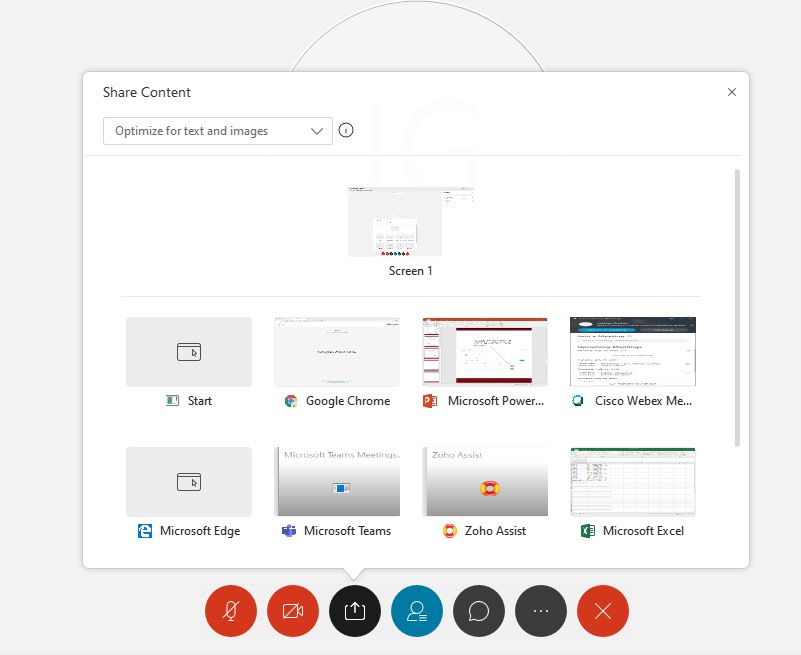
- Select the Share button to share content with the class.
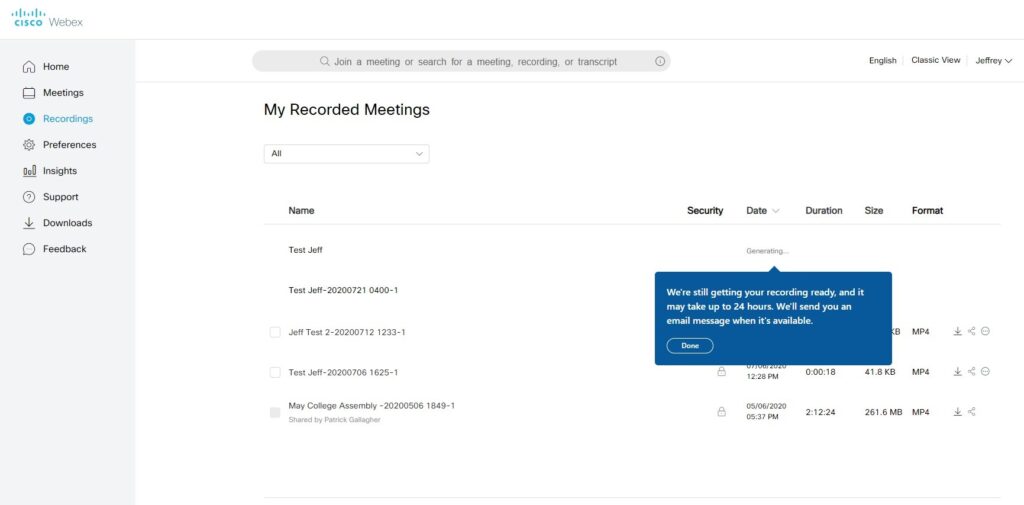
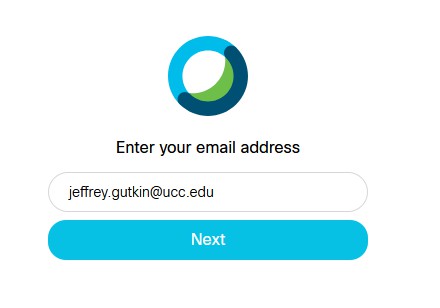
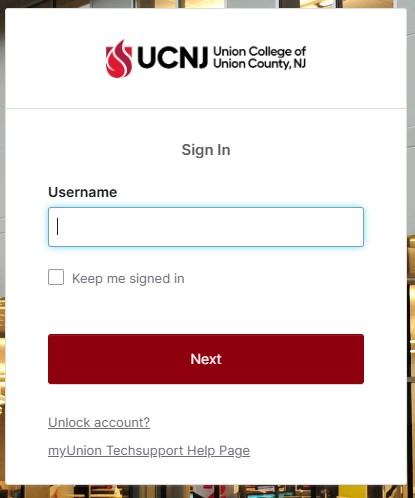
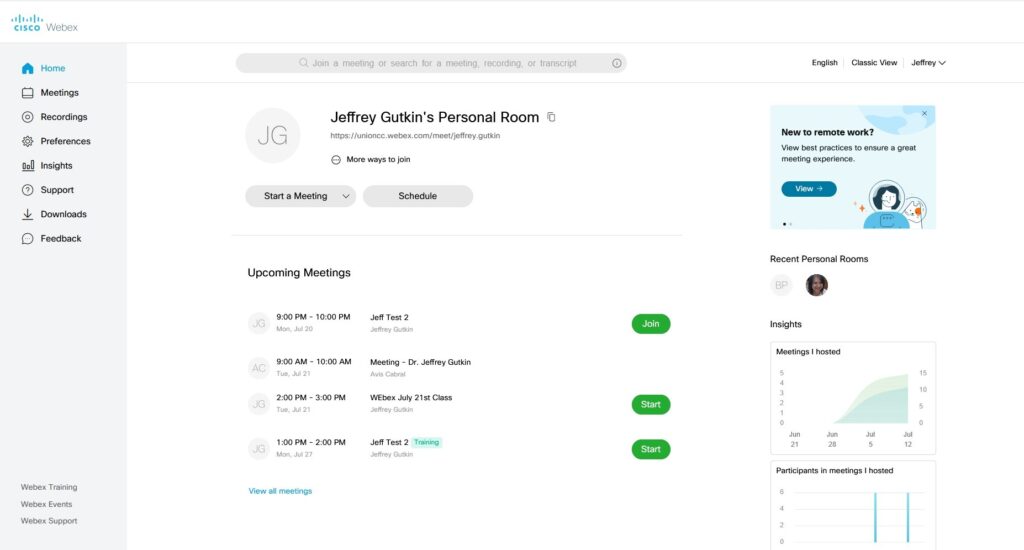
- For access to your WebEx dashboard, recordings and attendance, sign in to your account by going to unioncc.webex.com.
- This is your home page: for attendance click here.
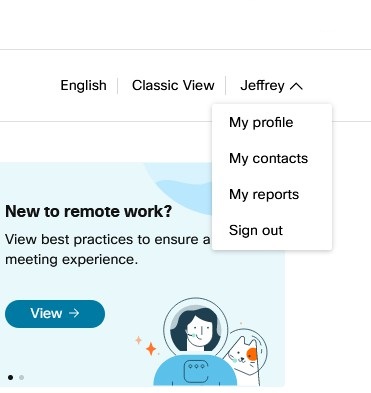
- Go to “my reports” to get your attendance logs.
- Also on this page are your recordings. You can share or download them.