
- Your UCNJ student email account is your username with @owl.ucc.edu added to it. For example, if your username is john.doe your email address is john.doe@owl.ucc.edu.
- Your password is the password you use to access your Self-Service account, email, on campus wireless and lab computers.
- Note: You must have first accessed your account to change your initial password before you can access your email account. If you need to reset your password, more information can be found on the Okta information page.
- Note: You must have first accessed your account to change your initial password before you can access your email account. If you need to reset your password, more information can be found on the Okta information page.
- After setting your password you must also setup your Okta account. If you have not completed your Okta account setup, instructions can be found on the Okta information page.
- Once you have set your password and configured your Okta account, you are ready to access your email account.
- Navigate to my.ucc.edu and login with your college username and password.
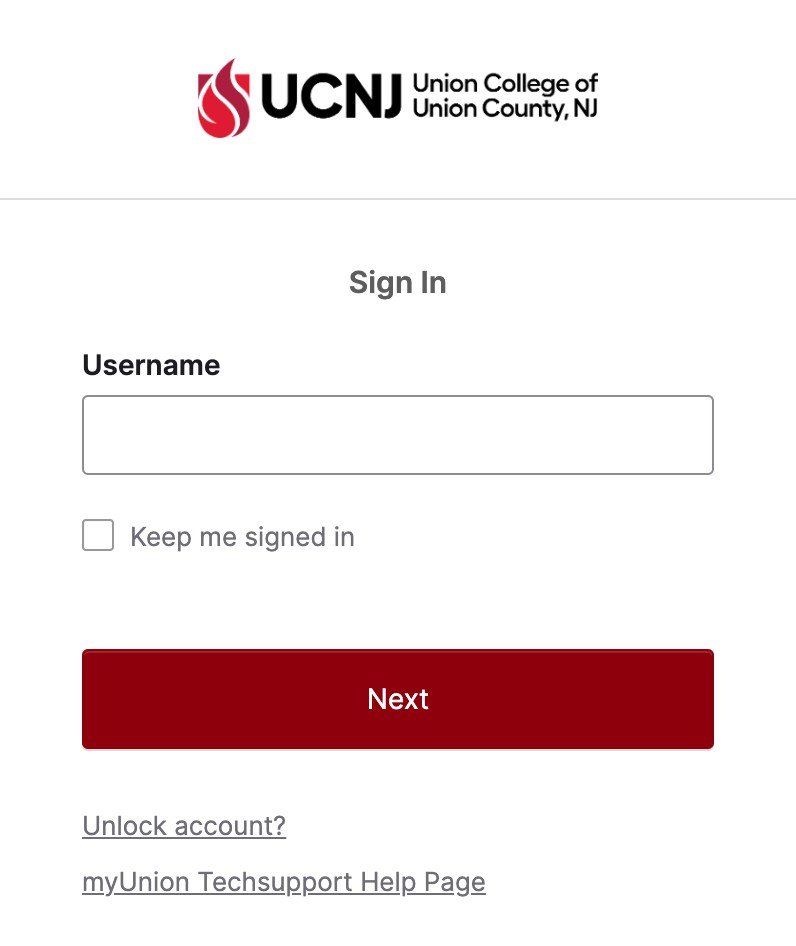
- After signing in, verify your account with your Multifactor Authentication (MFA) method.
- This will bring you to your Okta My Apps dashboard. Here you will find links to all the resources you have access to. For email, select Office365 Mail.
- That shortcut will bring you to your Office365 Student Mail inbox where you can read and send emails from your UCNJ student email account.
To send an email
- Click on New Message
- In the mail message box:
- Type the email address you wish to send to in the To box.
- Type the subject of the email in the Add a subject box.
- Type the message in the area below the Subject area.
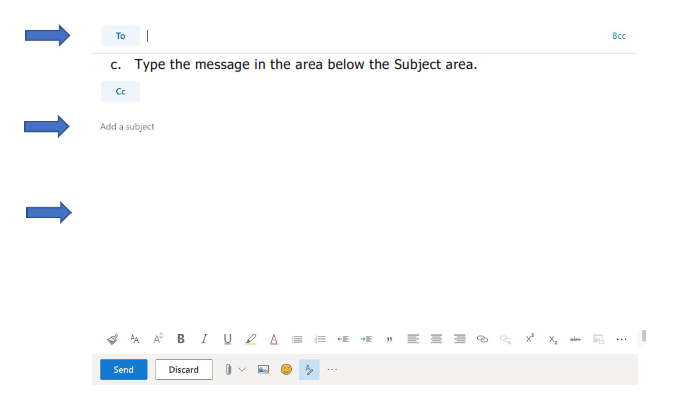
- When you are done and ready to send click on Send.
To read a message in your Inbox
- Click on the message and the message will show in the box on the right. If you double-click the message it will open in its own box.
To reply to a message
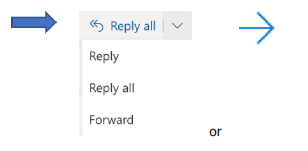
- Click on the Reply button to either Reply only to the sender or Reply all to reply to everyone listed on the email.
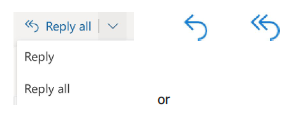
- The message box appears with the To field and Subject field already filled in.
- Type your message and click on Send.
To forward a message
- Click on the Forward button
- In the mail message box:
- Type the email address that you want to forward it to in the To box.
- The Subject is filled in with the original subject.
- If you wish to add to the message you can type in the message body.
- When you are done Click on Send.
To delete a message
- Click on message you want to delete and click on the Delete button.
To sign out of your account
- Click on the Sign out button on the top right of the window in your account list (the circle with
your initials in it)